

Step 1: Visit Google AI Studio
Step 2: Sign in to your Google Account.
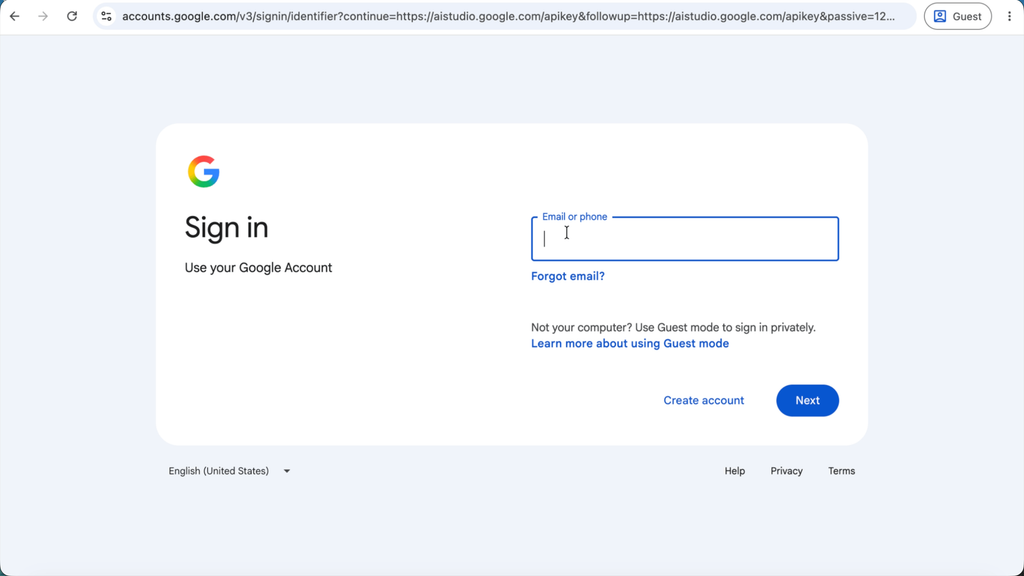
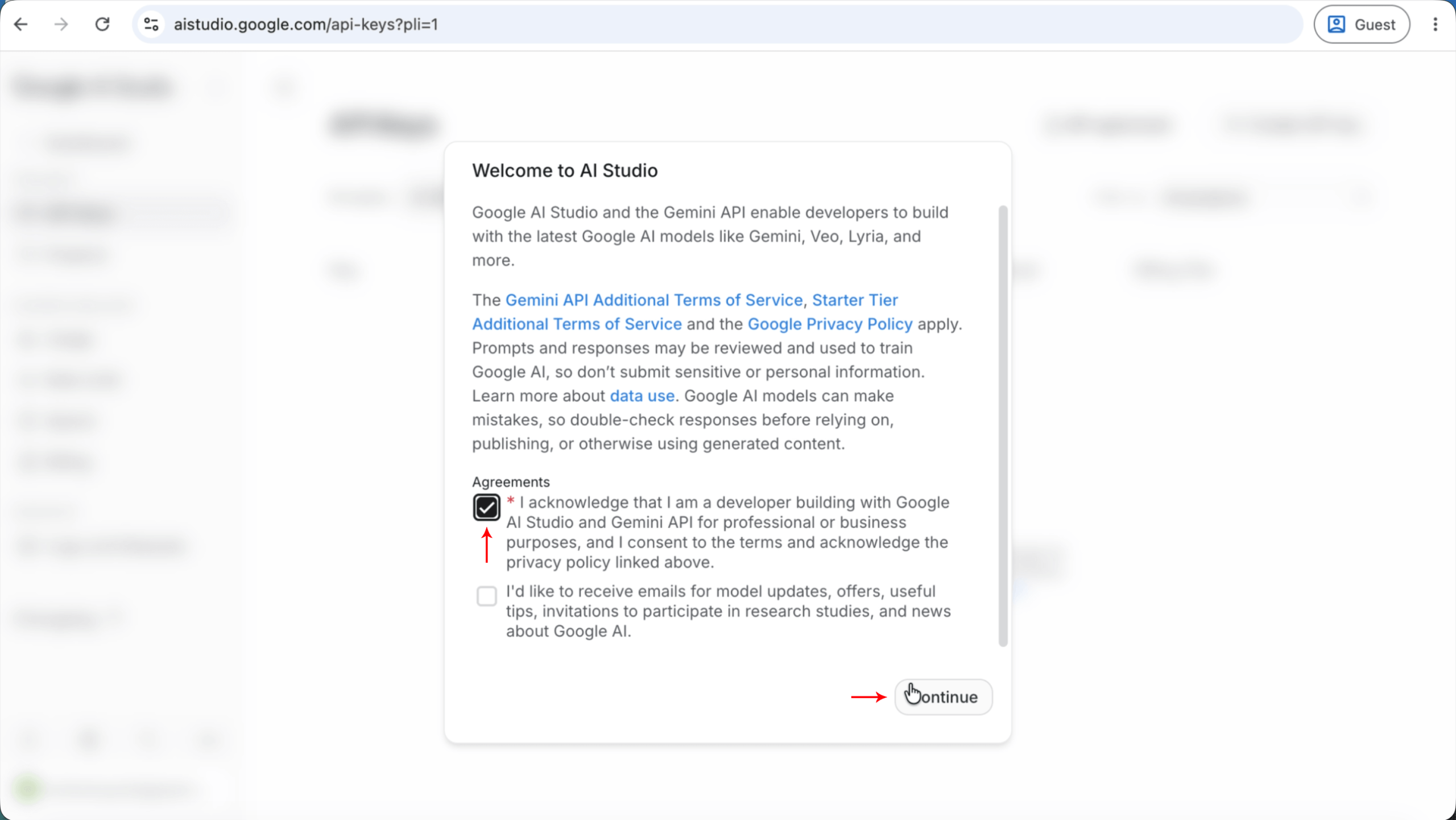
Step3: Accept Google AI Studio’s Terms of Service and click “Continue”.
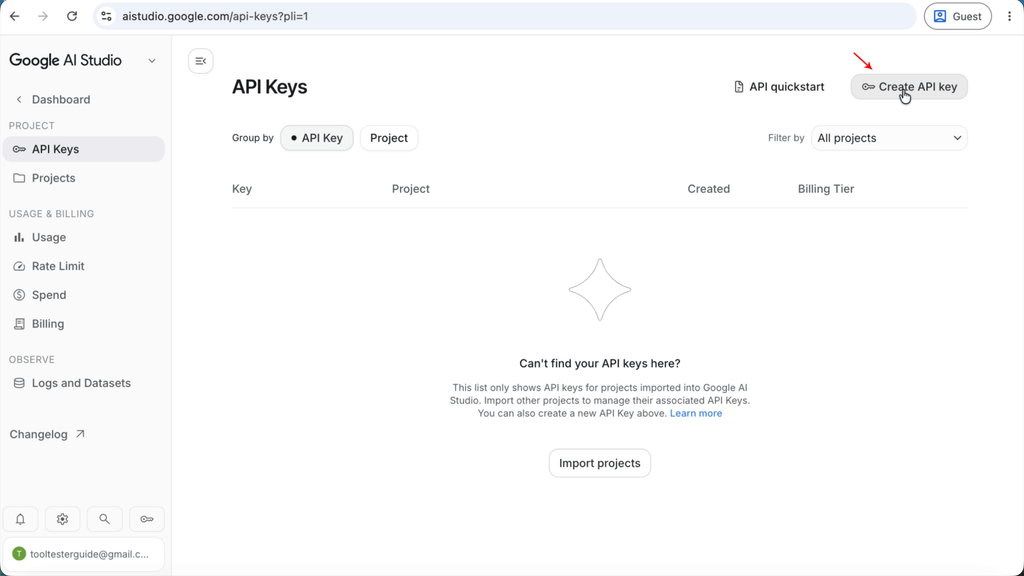
Step 4: Click on “the Create API Key” button at the top right of the page.
Step 5: Create a new Project (An API Key needs to be part of an existing project).
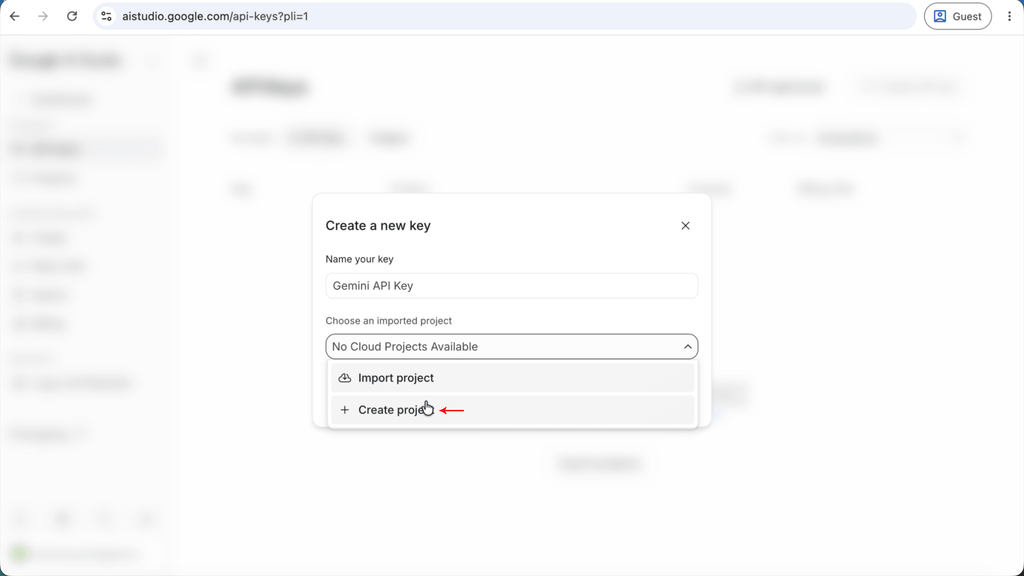
Step 6: Name the Project and click “Create Project”.
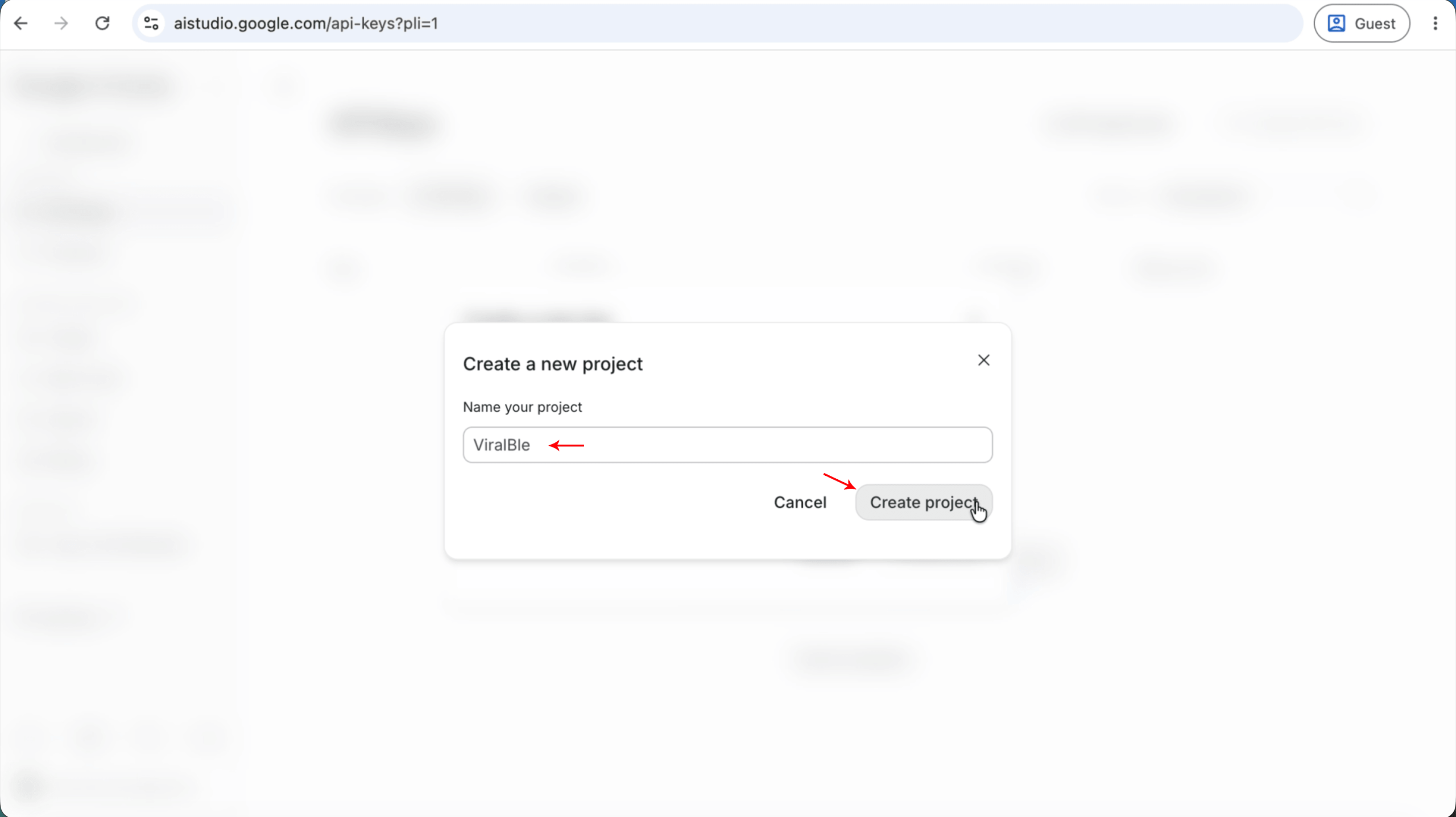
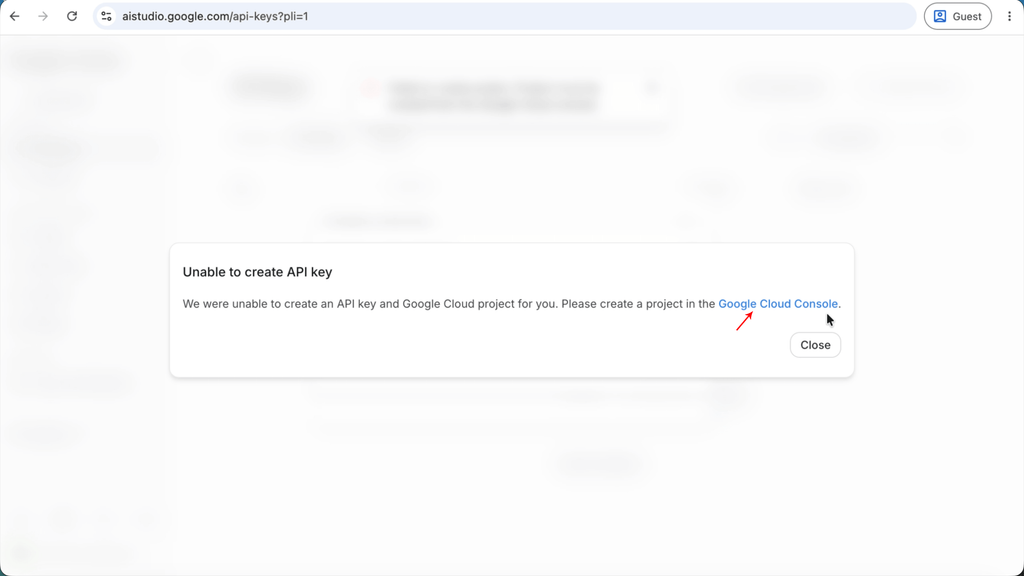
Step 7: If you can’t create a project in Google AI Studio, then click on the Google Cloud Console Link from Google AI Studio.
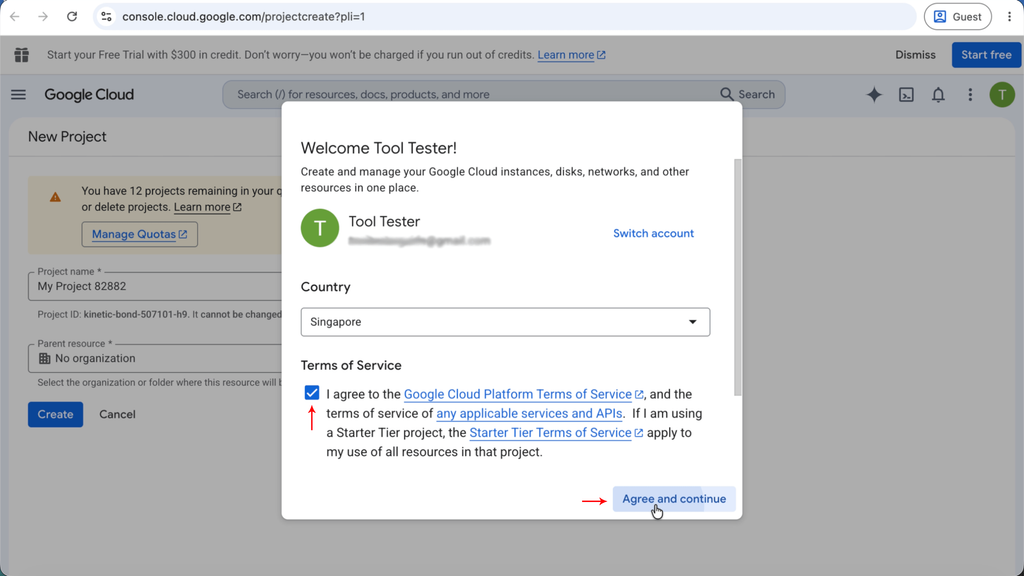
Step 8: Agree to the Google Cloud Platform terms and click “Agree and Continue”.
Step 9: Name your project (Leave your project ID as it is) and click “Create”.
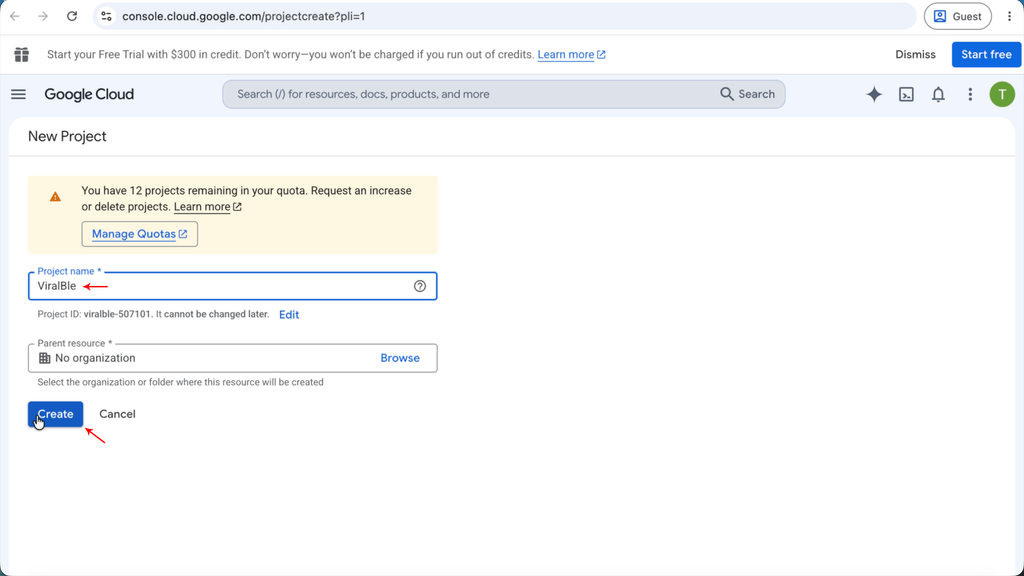
Once you have created a Google Cloud Console project, you will see a screen like the following:
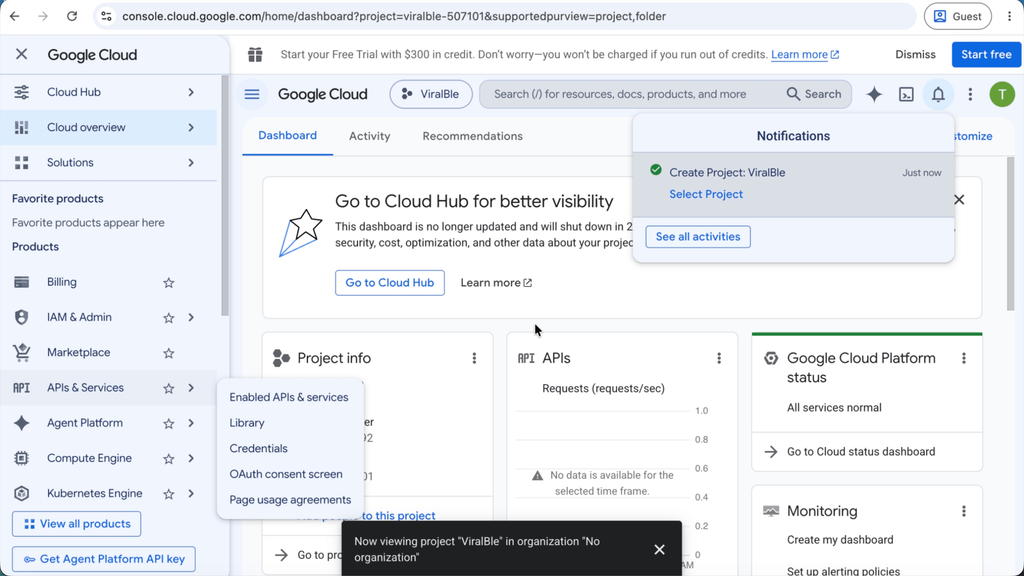
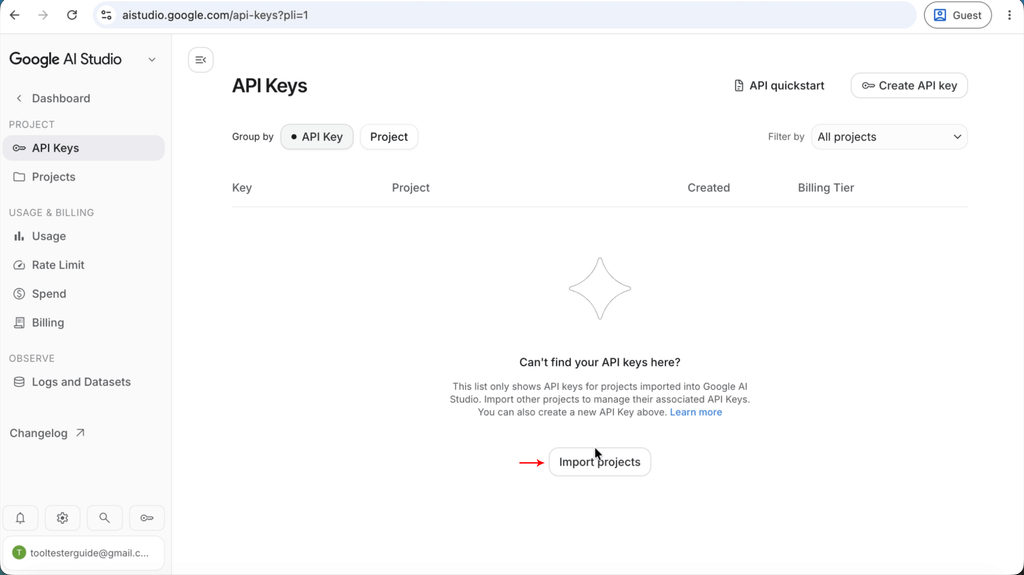
Step 10: Go back to Google AI Studio and close all the previously opened modals, and click “Import Projects. It may 3 to 5 minutes for Google AI Studio to detect the new project you have created from Google Cloud Console.
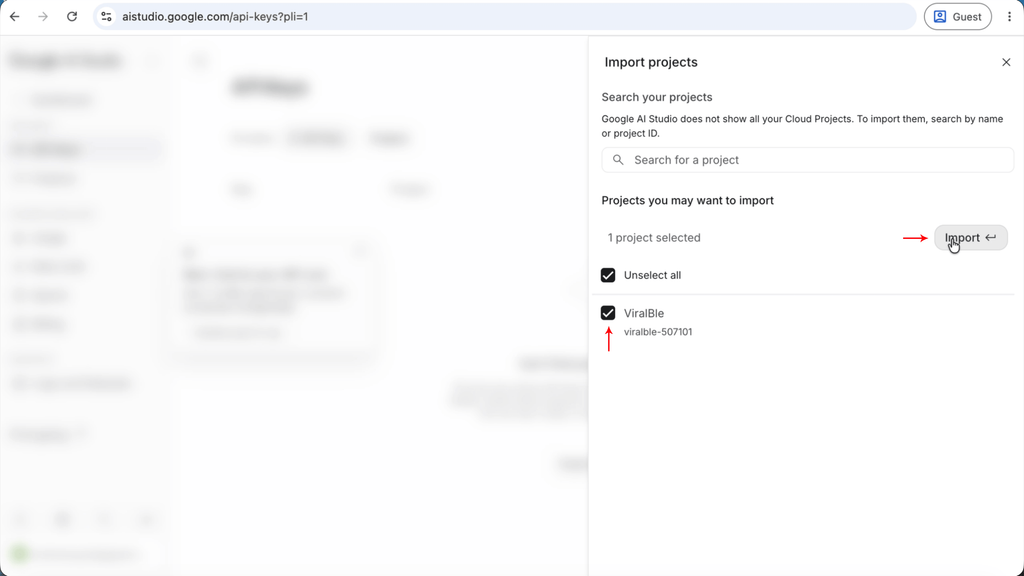
Step 11: When Google AI Studio detects your Google Cloud Console project, you will see it when you click on the “Import Projects” button in Step 10. Check the project and click “Import”.
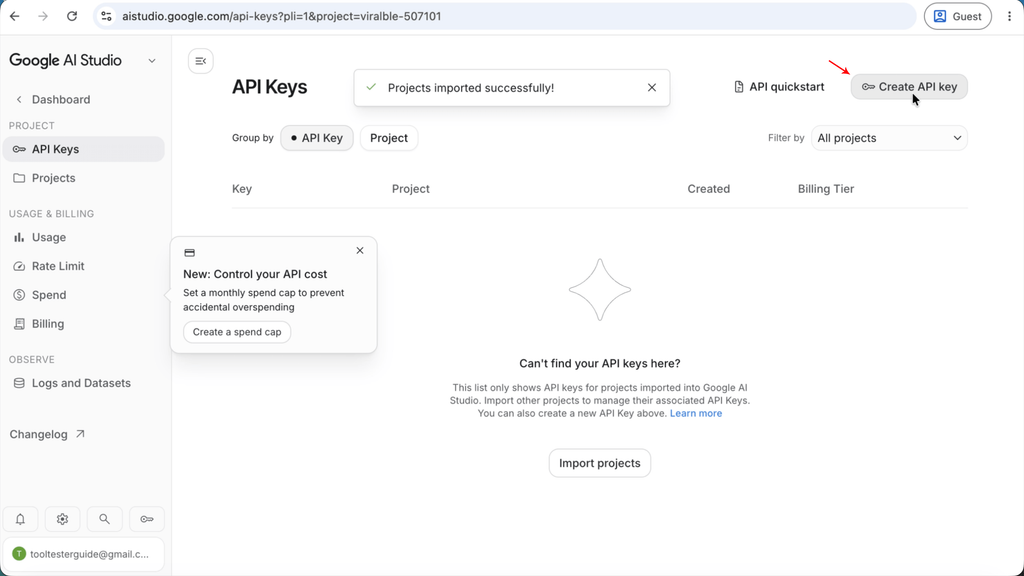
Step 12: Once the project is imported successfully, click on the “Create API Key” button again.
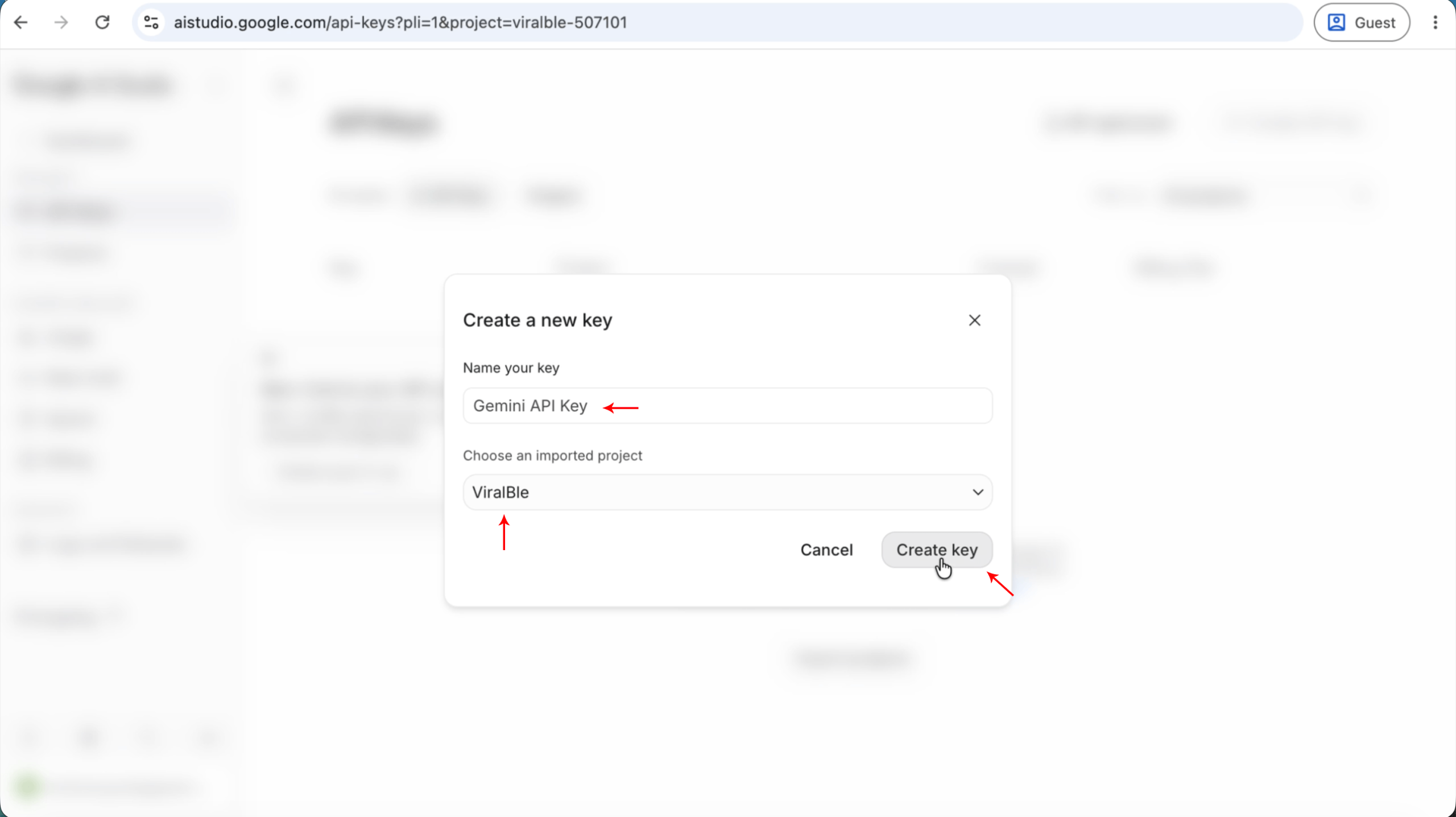
Step 13: Ensure that your newly created project is selected, and give your API Key a name, and click create key.
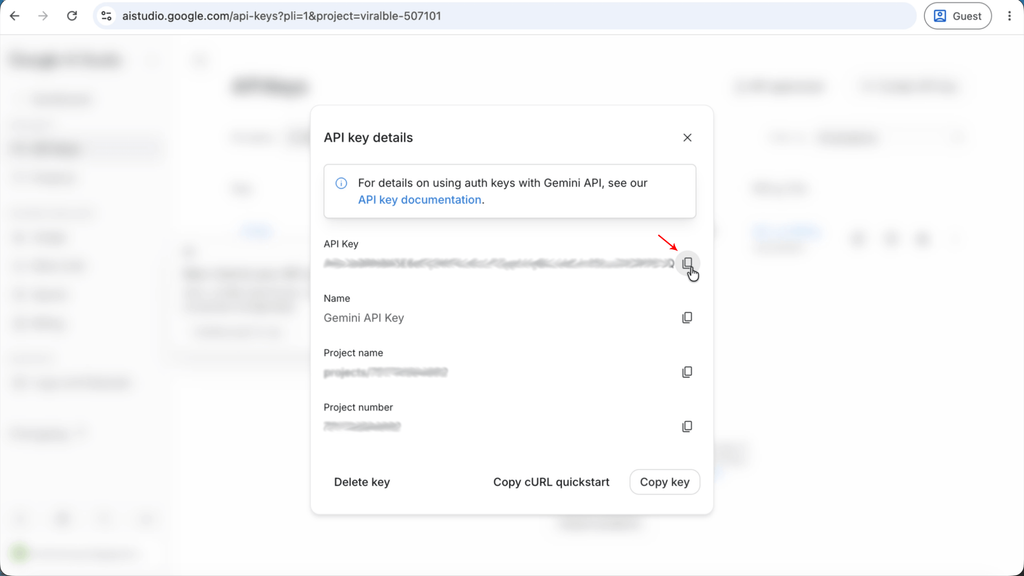
Step 14: Your new Google AI Studio API Key has been created. Copy it and enjoy the API Key. If you are using ViralBle PRO, you can continue to step 15 and see what ViralBle PRO can do for you.
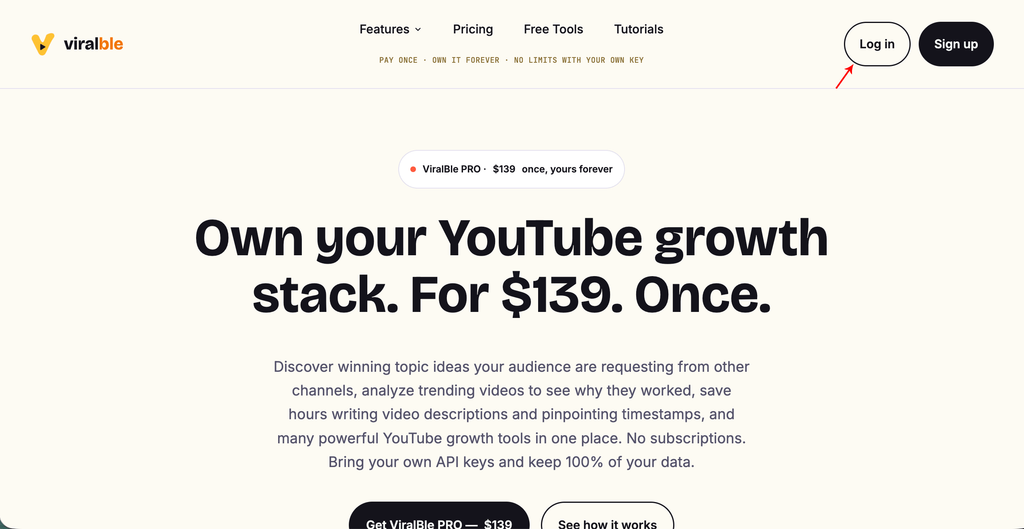
Step 15: Visit ViralBle.com, click on the “Login” button, and login to ViralBle PRO.
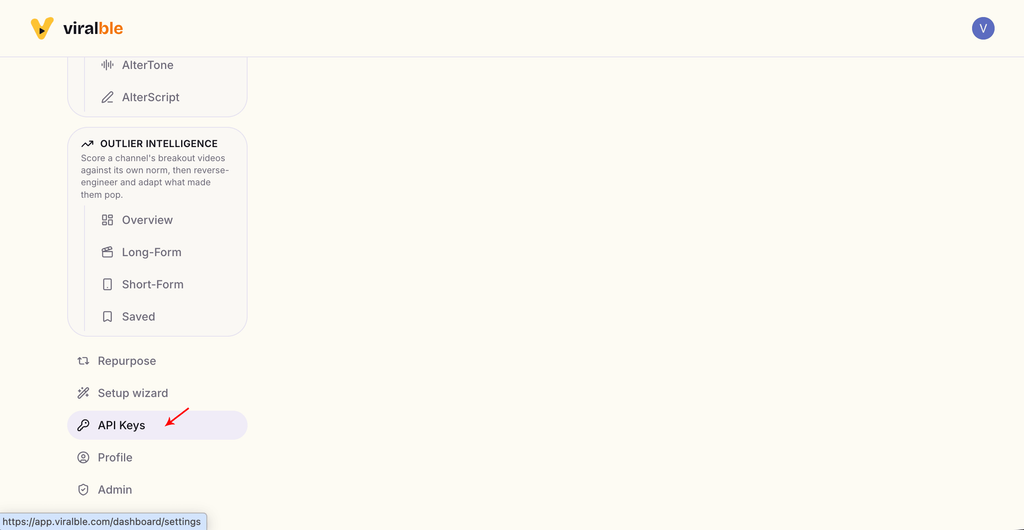
Step 16: Scroll down and click on the “API Keys” tab.
Step 17: Find the Gemini API card & click on the “Add Key” button.
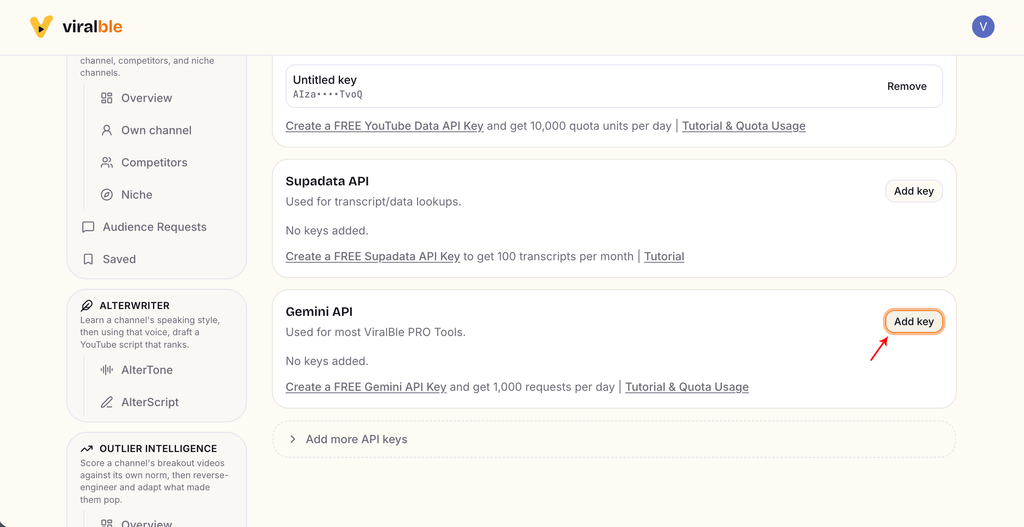
Step 18: Add your Google AI Studio API Keys to ViralBle PRO and start using your YouTube Growth Tools!
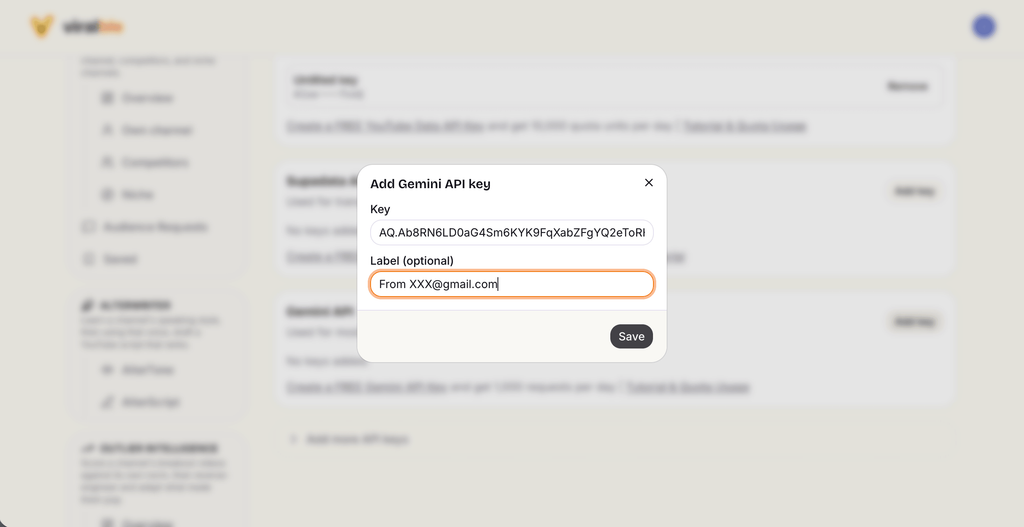
P.s. Don’t worry that API key in the image has already been deactivated.
Google AI Studio API Key Limits
Google AI Studio provides a generous free-tier API usage:
- 15 requests per minute / 250,000 Tokens Per Minute; and
- Approximately 1,000–1,500 requests per day per project
The limits are impose on per project, and not per API key. So, a typical free Google Cloud Console user can create about 5 to 10 projects, which means the maximum usage limits are 5 to 10 times of the known limit.
Leave a Reply