

Step 1: Visit Google Cloud Console.
Step 2: Sign in to your Google Account
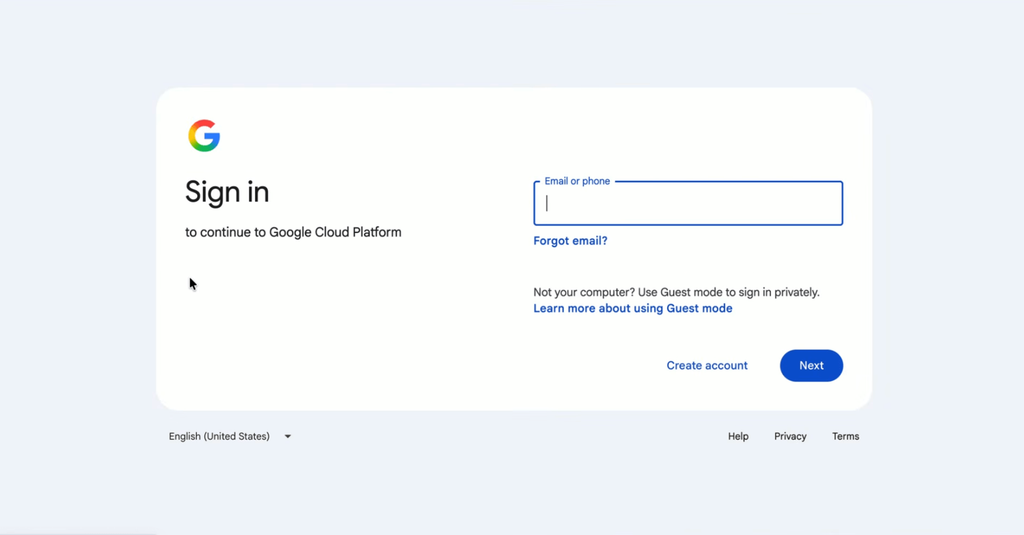
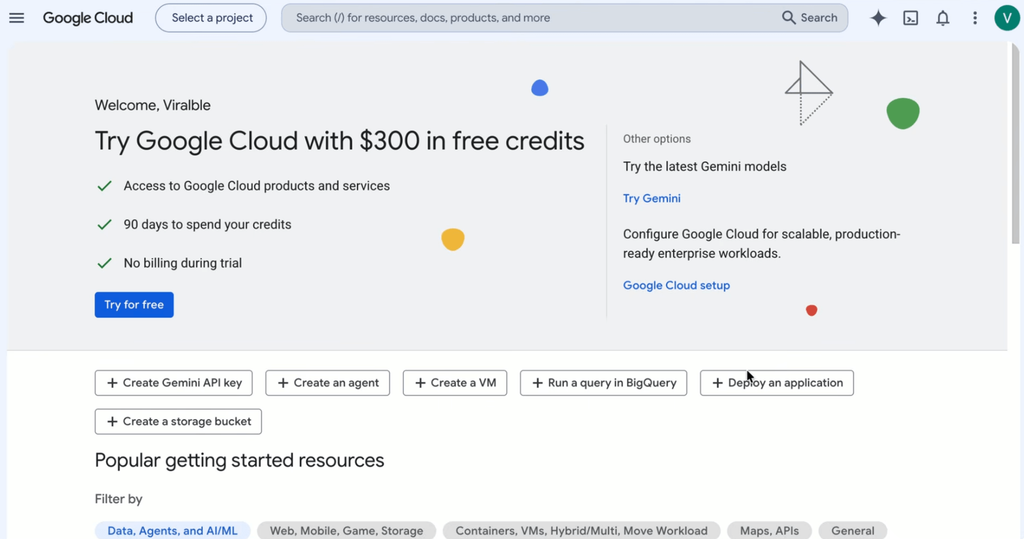
Step 3: After logging in, you will see Google Cloud Console Dashboard which looks like this:
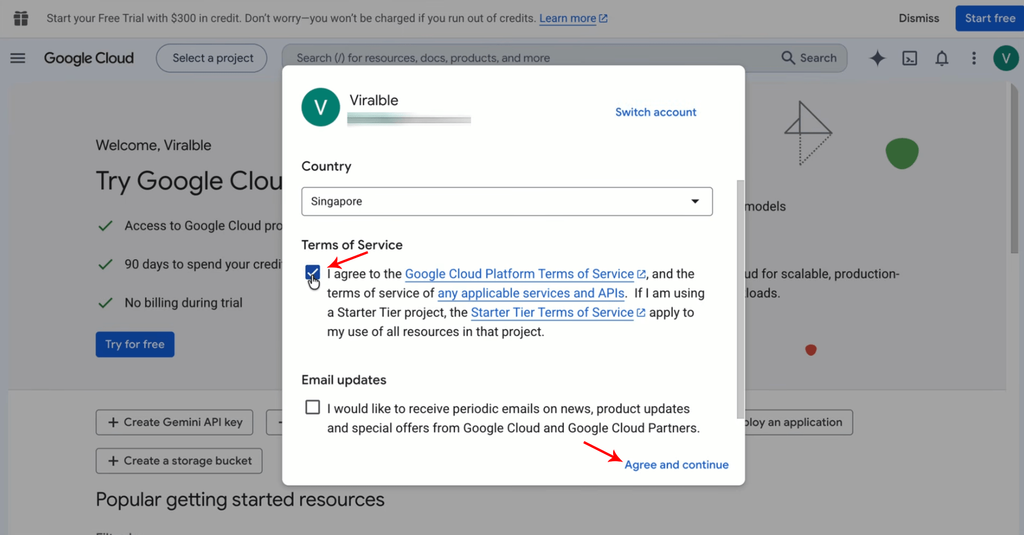
Step 4: Google Cloud Console will automatically detect your Google Account and will prompt you to agree to their terms of service. Click on the check box and then “Agree and Continue”
Note: Email Updates is not necessary unless you want Google to send you news, product updates, etc.
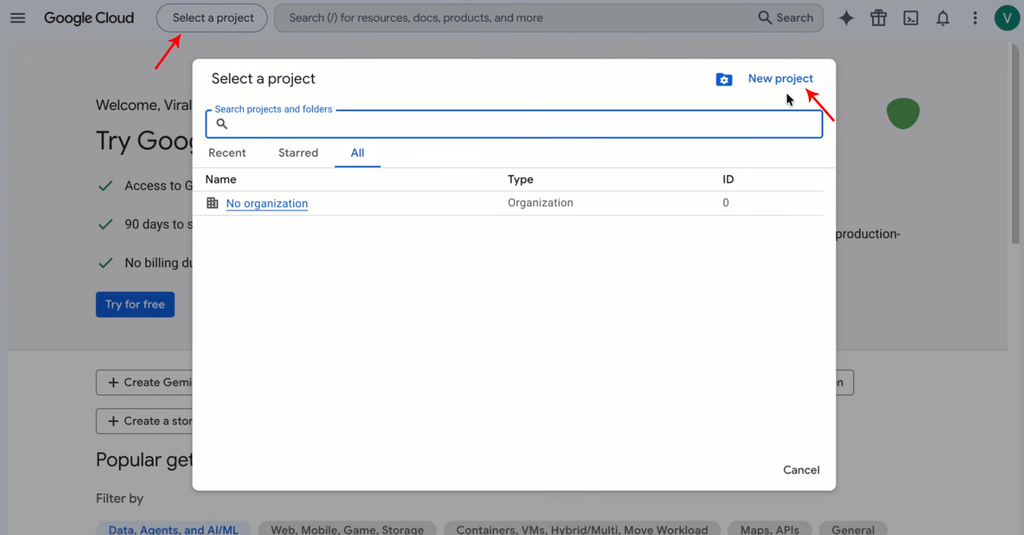
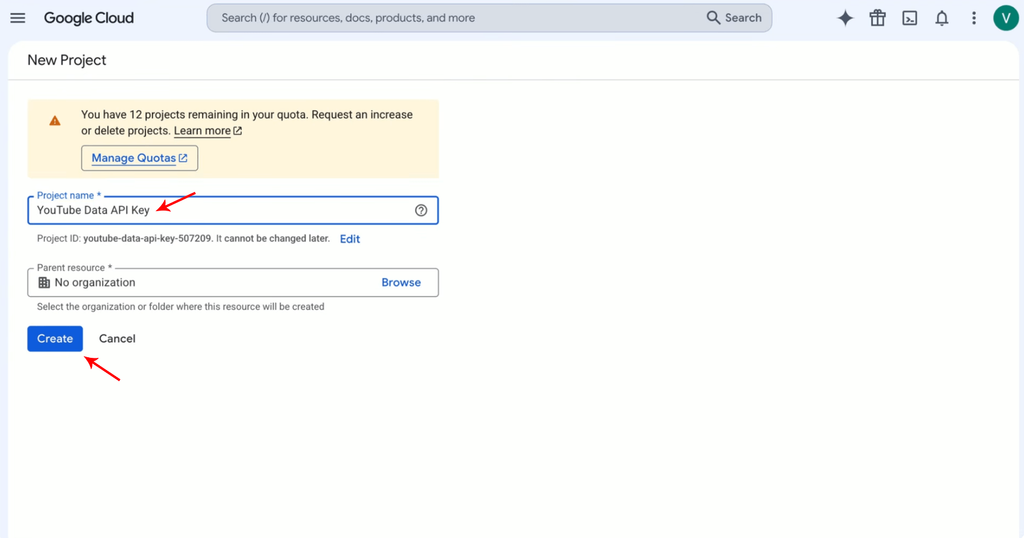
Step 5: Create a New Google Cloud Console Project
Step 6: Give the Project a name and click Create.
Note: Project ID needs to be unique to all Google Cloud Console users.
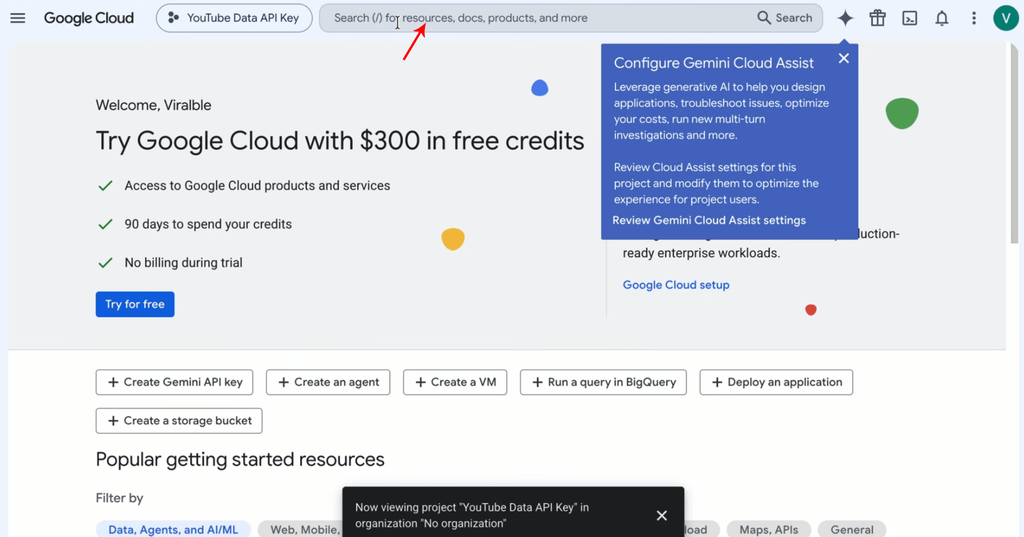
Step 7: Select the newly created project
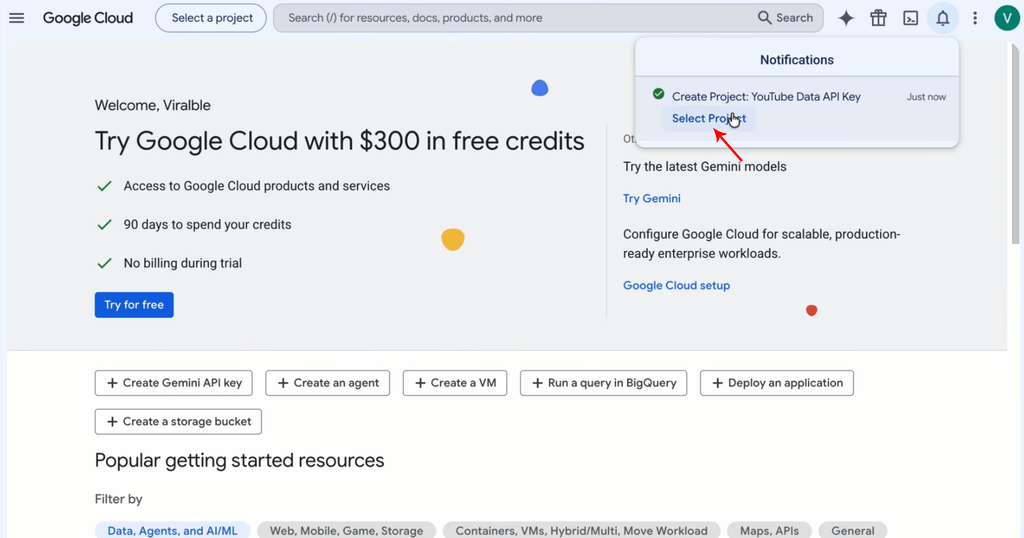
Step 8: Click on the search bar
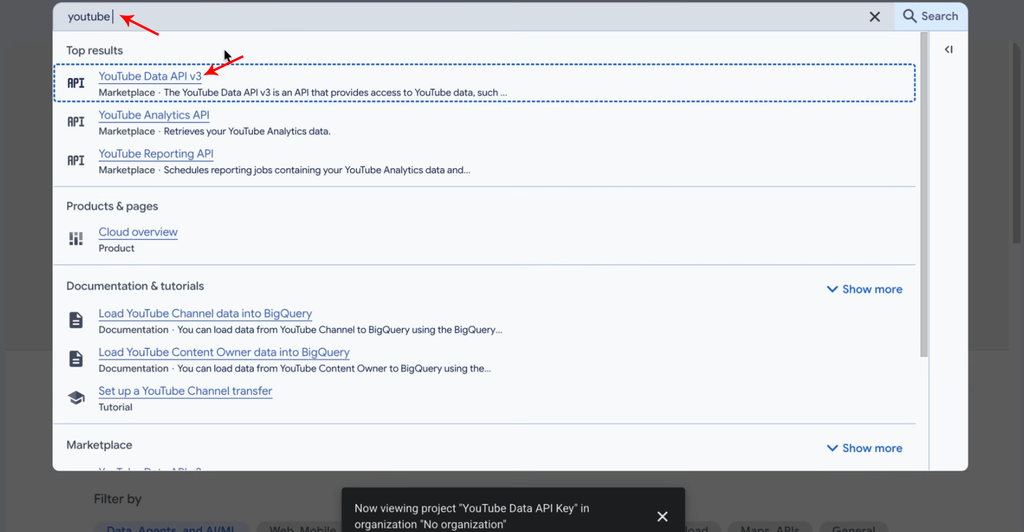
Step 9: Search and select YouTube Data API v3
Step 10: Enable the YouTube Data API v3
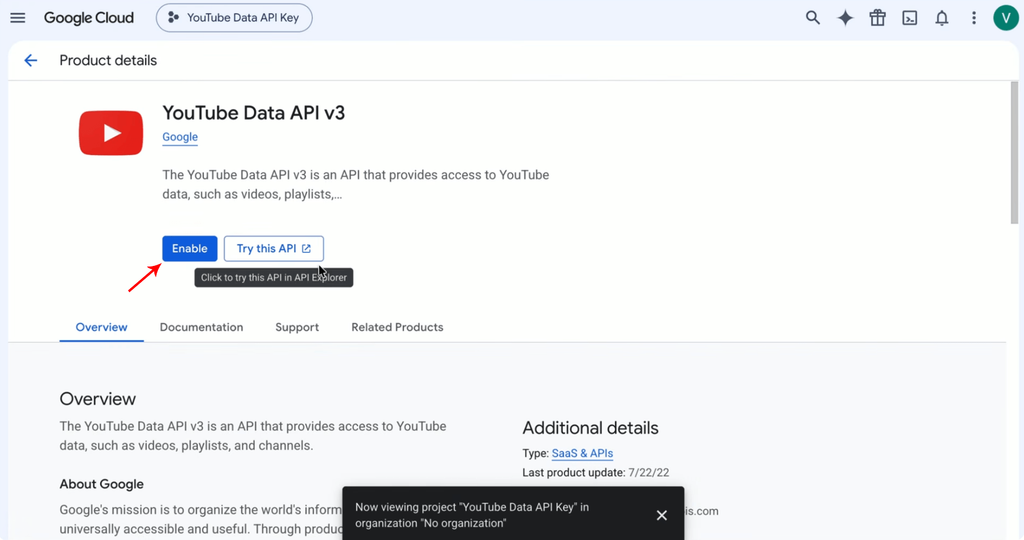
Step 11: Click on the “Credentials” tab
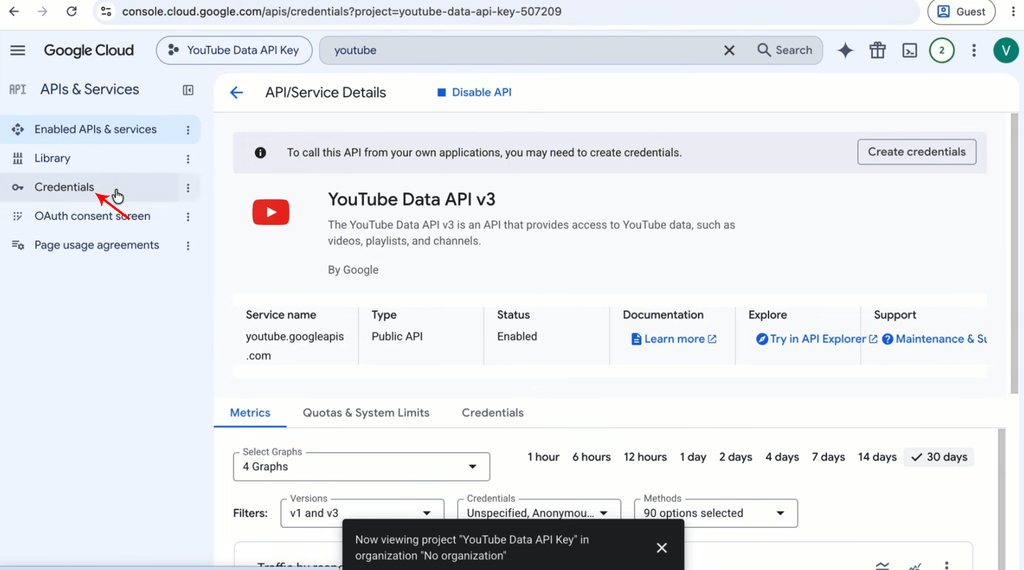
Step 12: Click on “Create Credentials” and select “API Key”.
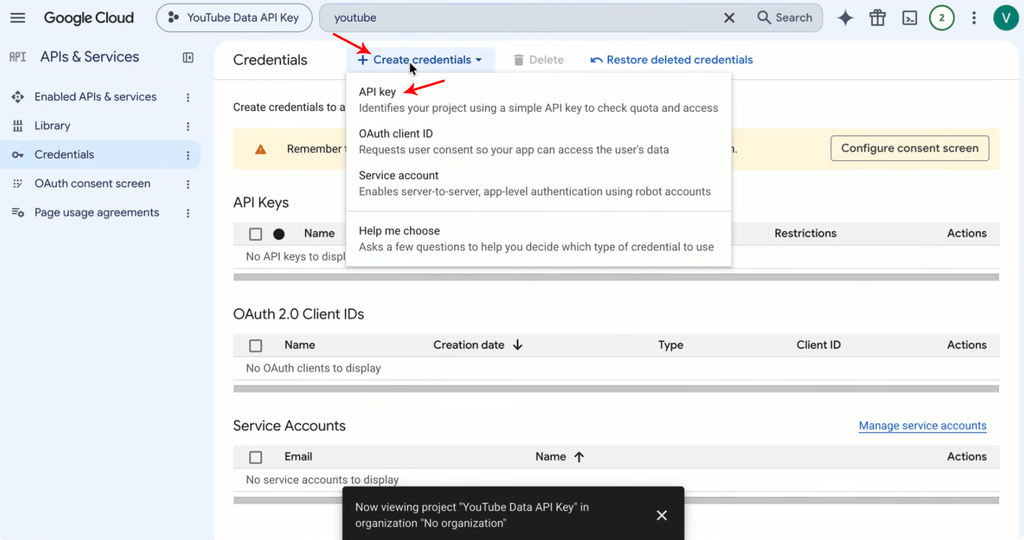
Step 13: Give the API a name and click select API restrictions.
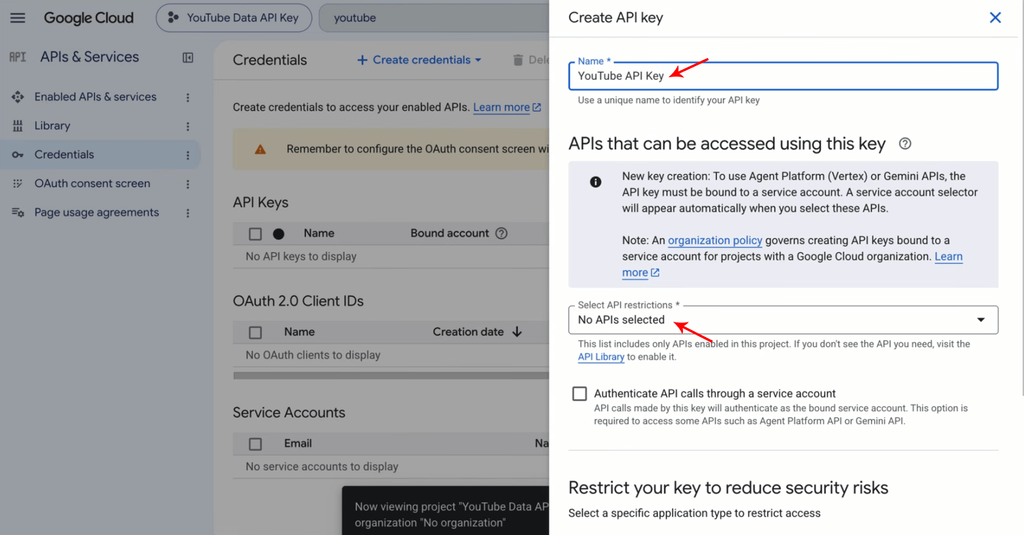
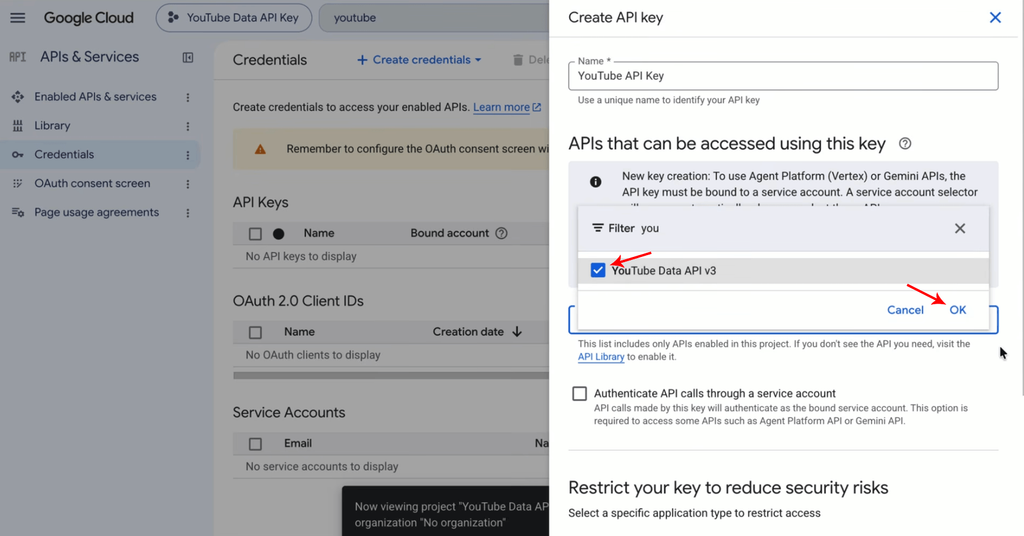
Step 14: Select “YouTube Data API v3” and click “OK”.
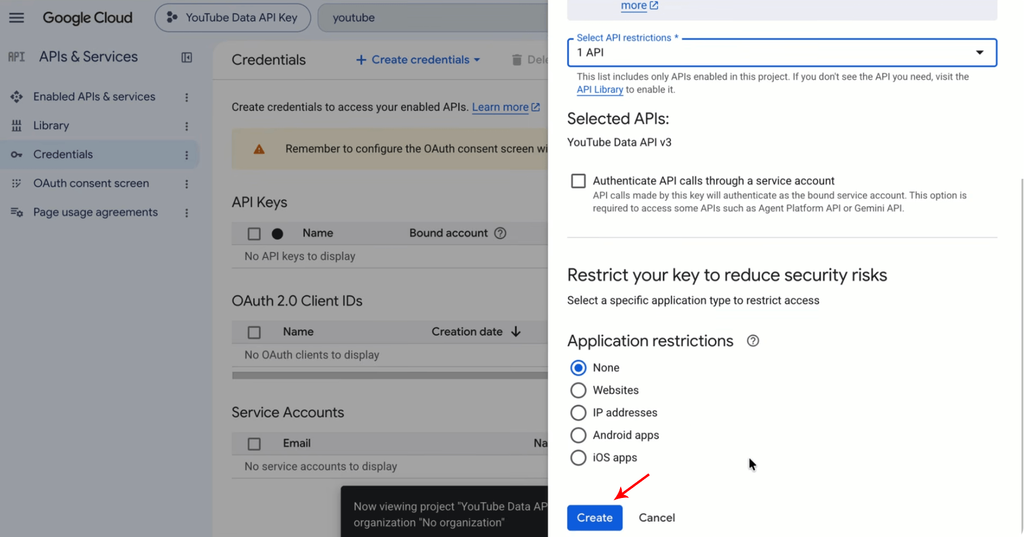
Step 15: Click “Create”.
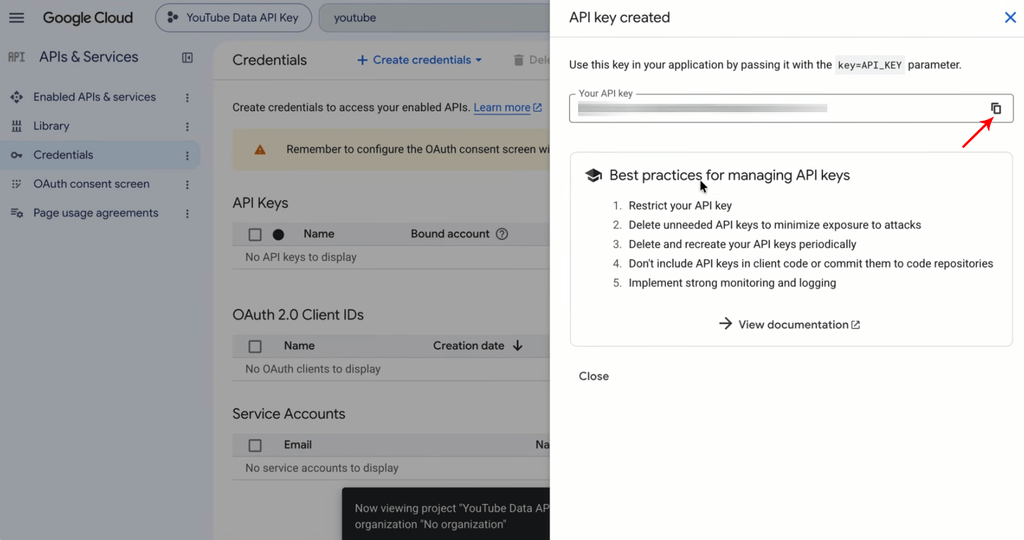
Step 16: Copy your YouTube Data API Key and paste it to wherever it needs to be. If you are a ViralBle PRO user, you can continue with Step 17.
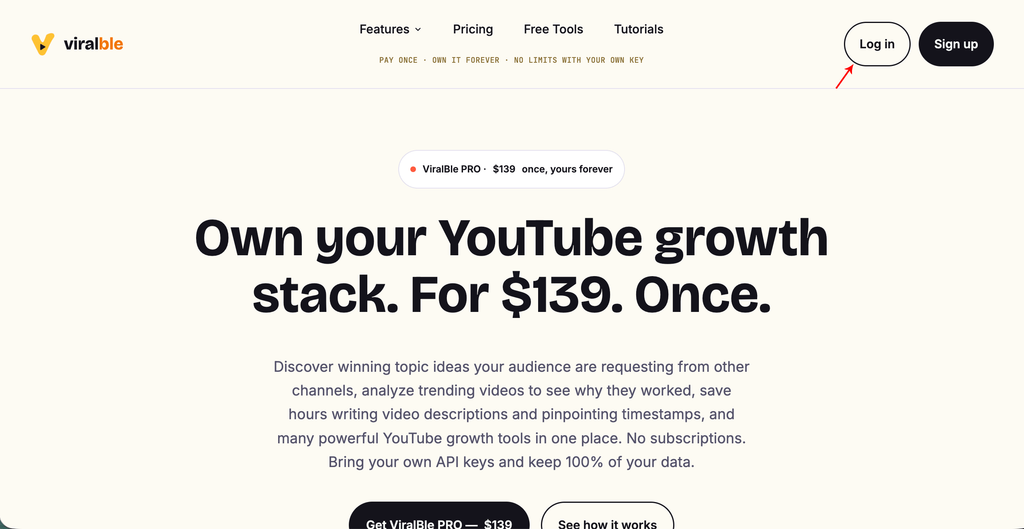
Step 17: Visit ViralBle.com, click on the “Login” button, and login to ViralBle PRO.
Step 18: Scroll down and click on the “API Keys” tab.
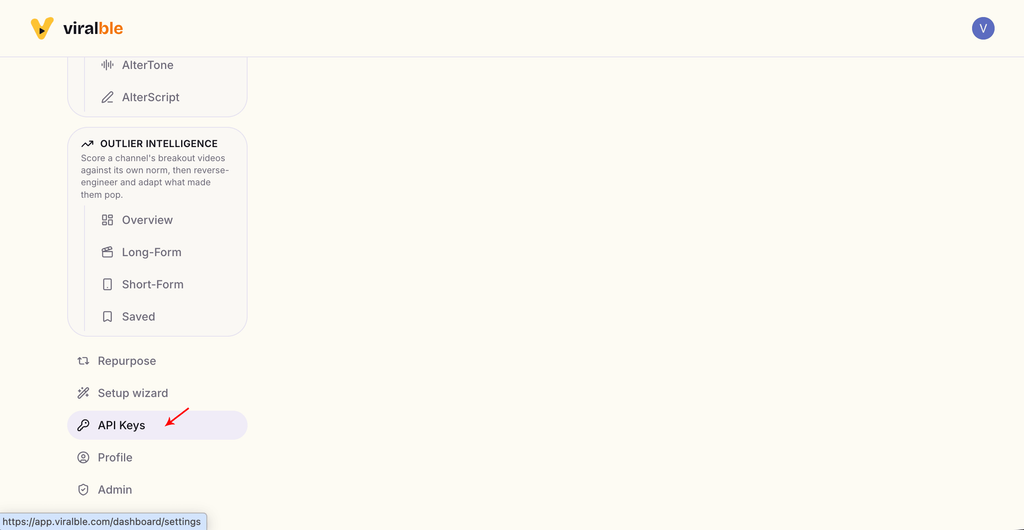
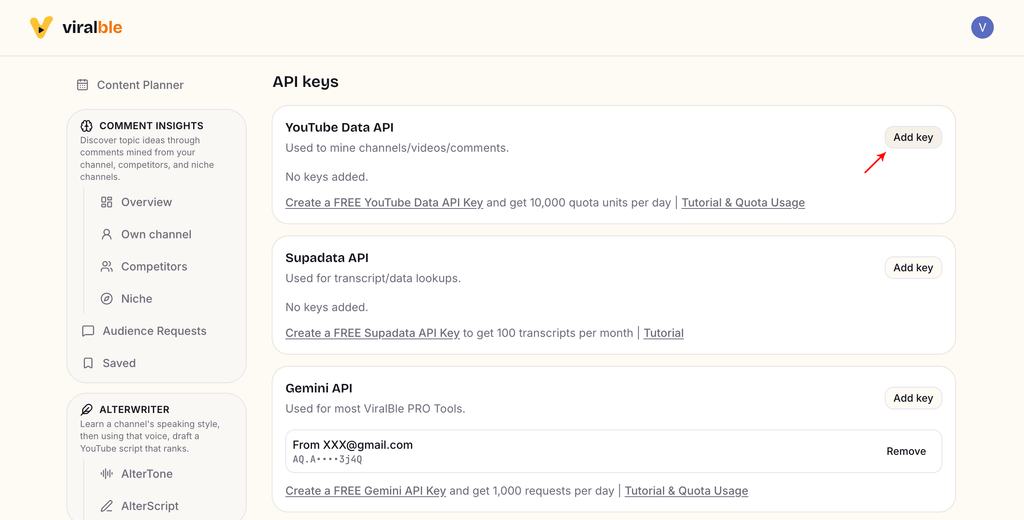
Step 19: Find the “YouTube Data API” card and click on the “Add Key” button.
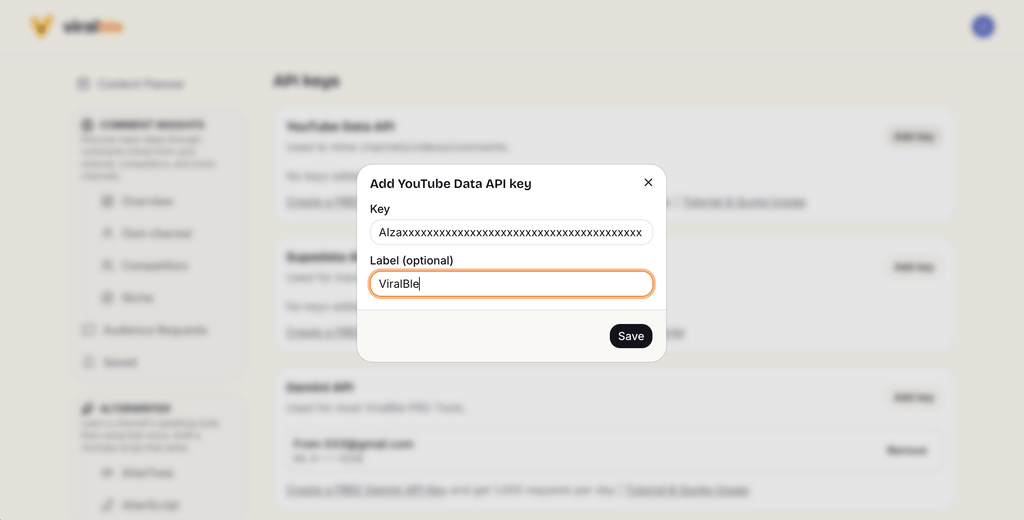
Step 20: Add your YouTube Data API Key to ViralBle, and start using all the YouTube Growth Tools.
Leave a Reply